
AI Scheduling Disasters: The One Calendar Mistake That Turns You Into “That Company”
AI can propose times, draft confirmations, and send reminders. But if it confirms the wrong job, wrong address, or wrong time, you lose trust fast. Here’s the fix.

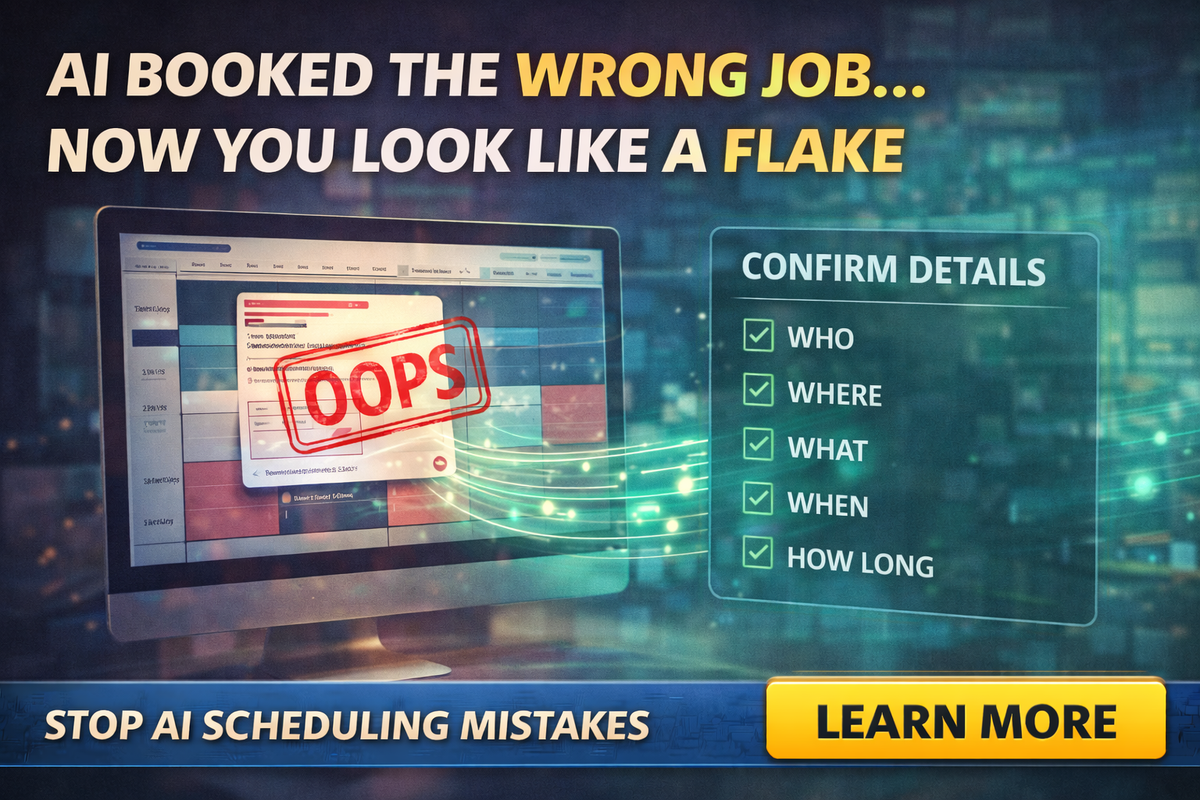
There’s a special kind of business damage that happens when scheduling goes wrong.
Not “we’re booked out.” Customers understand that.
I mean the other kind:
- You show up at the wrong address.
- You show up at the wrong time.
- You show up for the wrong service.
- You don’t show up at all, because the appointment never made it into the right calendar.
That’s how a great service business becomes “that company.”
Now here’s the tempting part: AI feels like it should fix scheduling. It can draft messages, summarize threads, propose time windows, and even automate reminders. And it absolutely can help.
But scheduling is one of those areas where one tiny mistake turns into a reputation problem.
So let’s talk about the real risk, and the simple workflow that keeps AI useful without letting it embarrass your business.
The real villain: auto-confirming without verification
Most scheduling chaos comes from one “small” mistake:
Confirming an appointment before the details are verified.
AI is great at speed. Scheduling requires accuracy.
When people let AI “handle it,” the failure usually looks like this:
- A customer mentions “next Thursday” and AI assumes a date.
- A customer says “sometime after lunch” and AI picks a time.
- A customer has two properties and AI uses the wrong address.
- A customer wants an estimate but AI confirms a full job.
- A time zone gets interpreted wrong for remote consults.
And then you’re the one apologizing, reshuffling your day, and losing trust.
Why scheduling is different from other AI tasks
If AI writes a rough first draft email, you can edit it.
If AI schedules the wrong appointment, the damage happens in the real world:
- wasted drive time
- missed jobs
- upset customers
- negative reviews
- staff confusion
- revenue leakage
Scheduling is operational truth. It’s not just words.
The “Confirm, Don’t Assume” rule
If you only adopt one rule from this entire post, make it this:
AI can propose. Humans confirm.
That means AI can:
- draft a scheduling message
- propose time windows
- summarize customer availability
- generate reminder templates
- list missing info you need
But AI should not finalize bookings without a confirmation step that checks the essentials.
The 5 details that must be confirmed every time
Whether you’re a trades business, a realtor, an inspector, an insurance agency, or a consultant, these five things keep scheduling sane:
Who
Correct client name and best contact method.
Where
Correct address or meeting location, and which property if there are multiple.
What
Exact service requested, and what “done” looks like.
When
Date, time, and time window, plus time zone if remote.
How long
Expected duration and any buffer time required.
If AI drafts confirmations, it should always include these fields in plain language.
A simple “safe AI scheduling workflow” for tiny teams
This works even if you’re a one-person business.
Step 1: AI summarizes the request
Use AI to extract:
- client name (or “Client A” if you are redacting)
- requested service
- preferred days/times
- address mentioned
- urgency
Step 2: AI creates two options, not one
Single-time proposals fail because customers have different lives.
AI should draft a message like:
“I can do Tuesday 2–4 or Thursday 9–11. Which works best?”
Step 3: Confirmation message includes the 5 essentials
Before the appointment is “real,” the customer replies yes to the details.
Step 4: Only then add it to the calendar and send the final confirmation
This is where you stop the “oops” moments.
Step 5: Reminders go out automatically, but with the same essential info
Reminder messages should repeat:
- day and time
- address
- service
- anything the customer should do before you arrive
The scripts you can use today
Here are plug-and-play templates. You can have AI draft them in your voice, but keep the structure.
Template 1: First scheduling reply
“Thanks for reaching out. To schedule this, I just need two quick details: the address and the service you want done. After that, I can offer you two time options.”
Template 2: Two-option proposal
“I can fit you in [Option A: day/time window] or [Option B: day/time window]. Which one works best?”
Template 3: Final confirmation
“Perfect, you’re scheduled for [Day, Date] at [Time].
Address: [Address]
Service: [Service]
Estimated duration: [X]
If anything changes, reply here and we’ll adjust.”
Template 4: The “prevent no-shows” reminder
“Quick reminder: we’re set for [Day/Time] at [Address] for [Service]. If you need to reschedule, text or reply here.”
Simple beats clever.
The biggest trap: syncing and “multiple calendars”
Many scheduling disasters are not customer mistakes. They’re system mistakes:
- The owner has one calendar.
- The tech has another.
- The office manager has a third.
- The booking tool writes to the wrong one.
- Someone’s phone calendar is not syncing.
AI won’t fix that if the foundation is messy.
If your team has more than one person touching schedules, standardize:
- one source of truth calendar
- one booking process
- one way to label appointments
Even a small naming convention helps:
“Client Name | Service | Area”
“But I want automation, not more steps”
This is the part people get wrong.
The confirmation step is not a “slowdown.” It’s a shield.
It prevents:
- wasted time
- awkward apologies
- reschedule domino effects
- angry reviews
Most businesses lose more time fixing scheduling mistakes than they would spend doing confirmation right.
Final Thought
AI can absolutely make scheduling easier, but only if you use it the safe way.
Let AI do the boring parts:
- summaries
- drafting
- proposing options
- reminders
Keep humans in charge of the truth:
- confirming the details
- finalizing the booking
- protecting your reputation
If you want a clean, small-business scheduling workflow (plus AI prompts and templates your team can use without chaos), Managed Nerds can help you set it up so you save time and look professional, not scattered.
Subscribe for the latest AI small business tips.