Your AI Can’t Keep a Secret: The Hidden Places Your “Private” Work Gets Stored
You thought it was a quick private AI draft. Then it showed up on another device, in chat history, or inside a connected app. Here’s the data trail, and how to stop it.

Let’s talk about the lie we all tell ourselves when we’re moving fast:
“This is just a quick AI draft. Nobody will see it.”
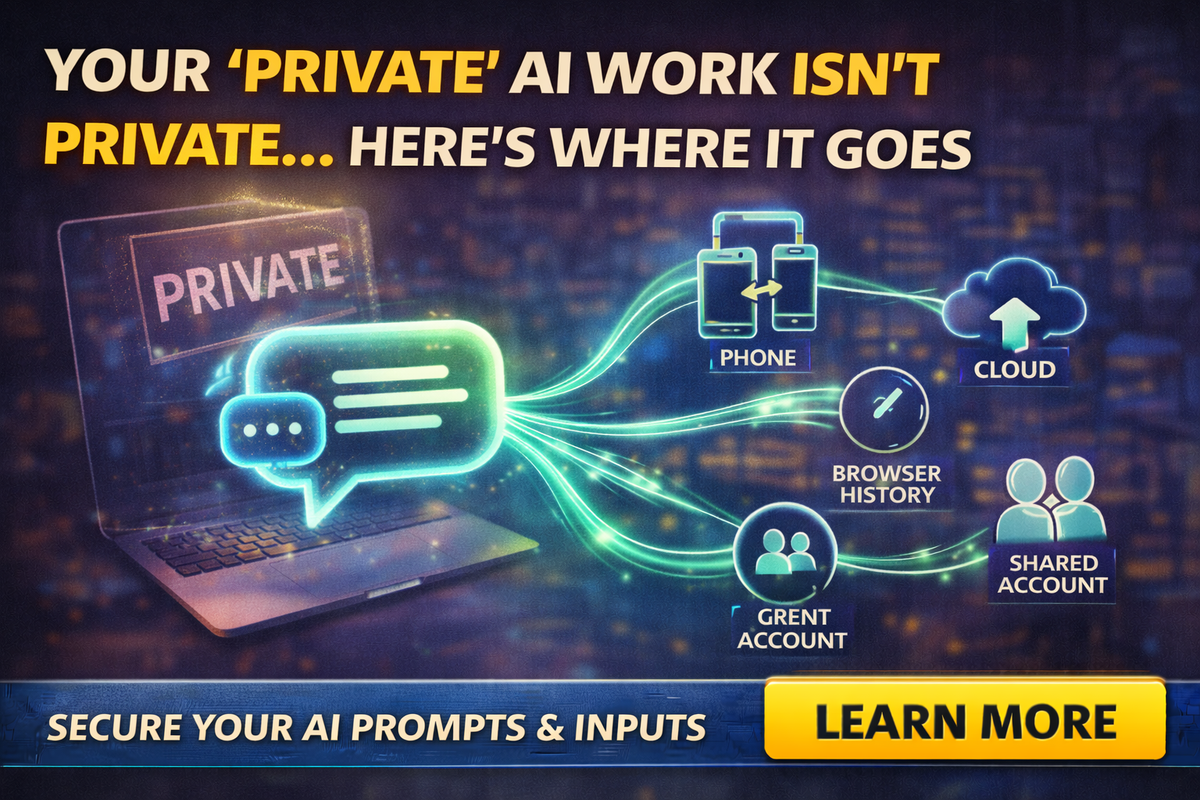
Then later you realize your “private” work might be sitting in places you did not think about:
- chat history
- synced devices
- shared accounts
- connected apps
- browser extensions
- exports and screenshots
That’s not always a scandal. Sometimes it’s just convenience.
But for small businesses, convenience can quietly become a confidentiality problem, especially if you handle client details, invoices, insurance info, legal-ish language, or internal notes.
And it’s not just a theory. Big platforms are actively pushing deeper personalization features that connect AI to personal data sources like email and photos, which is helpful and also a privacy decision.
So let’s get practical: where the trail is, why it matters, and how to use AI without leaving your business exposed.
The tabloid truth
Your AI work can be “saved” in more places than you realize, even if nobody is doing anything shady.
The bigger your “AI footprint,” the more likely sensitive stuff ends up in the wrong spot.
And the FTC has made it clear that companies need to honor their privacy and confidentiality commitments, including claims about how customer data is used, such as training.
For you as a business owner, the lesson is simple: do not assume, verify.
The hidden places your “private” AI work gets stored
Here are the most common hiding spots that surprise owners.
Chat history and conversation logs
Many AI tools save chat history by default, because it’s convenient. That means a draft email, a summary of a client issue, or a pricing discussion could still be sitting in an account weeks later.
If your team shares a login (it happens), your “private” draft is not private anymore.
Synced devices
If you use AI on your phone, tablet, and laptop, you may have:
- the same account logged in everywhere
- shared browsers
- saved sessions
This is how “I only wrote that on my phone” turns into “Why is that on the office computer?”
Browser extensions and side panels
Extensions can be helpful, but they add risk because they sit inside your browser while you’re looking at:
- client portals
- invoices
- policy documents
- CRM screens
Even if the extension is legitimate, it increases the number of tools that can potentially see what you’re doing.
For small teams, fewer tools is usually safer.
Connected apps, inboxes, and drives
This is the big one.
Modern AI is moving toward “connected apps” that can access Gmail, Drive, calendars, photos, and more for personalization and productivity.
That can be great, but you have to treat it like giving someone keys to the building.
Also, platforms are trying to clarify what is and is not used for training, which is why reading the business privacy docs matters, not rumors.
Shared folders and copied outputs
Even if the AI chat itself is safe, the output usually gets pasted into:
- Google Docs
- Word docs
- a CRM note
- email drafts
- shared team chats
That can be fine. It can also spread sensitive details wider than intended.
Screenshots and “quick shares”
This is the sneaky one. People screenshot AI answers to share with coworkers. Those screenshots can land in:
- phone photo libraries
- synced cloud photos
- shared albums
Now you have client info in a photo roll.
Clipboard and keyboard history
On phones, some keyboards store clipboard history. Some devices sync clipboard content across devices. That means the “quick paste” you did might be retrievable later.
This is not meant to scare you. It’s meant to remind you that data trails exist.
“But my vendor says they don’t train on my data”
That statement can be true and still not mean what people think it means.
There’s a difference between:
- not training foundation models on your prompts
- retaining prompts for a period of time
- allowing personalization features that use your content to provide answers
For example, Microsoft states in its Copilot documentation that prompts, responses, and data accessed through Microsoft Graph aren’t used to train foundation models for Microsoft 365 Copilot.
Google’s Workspace admin guidance similarly emphasizes privacy commitments for business customers using Gemini in Workspace.
The point is not “which brand is best.” The point is: business accounts often have clearer guardrails than random free tools.
Also, the FTC has warned that quietly changing terms after collecting data can be unfair or deceptive.
So, you should treat AI like any vendor: review settings periodically.
The “Small Business Safe Mode” workflow
You don’t need a 40-page policy. You need rules people will actually follow.
Rule 1: Approved tools only
Pick one or two AI tools for work. That reduces chaos and makes training realistic.
Rule 2: No sensitive paste list
Do not paste:
- passwords, login links, access codes
- bank info, invoices, payment screenshots
- policy numbers, claim details, IDs
- contracts in full, unless your approved tool and policy allow it
- HR issues or employee performance notes
Rule 3: Redact first, always
Use placeholders:
- Client A
- Address A
- Policy ID
- Amount
This single habit prevents most disasters.
Rule 4: Separate “drafting” from “deciding”
Let AI draft structure, tone, and summaries. Humans approve facts, numbers, and commitments.
Rule 5: Turn off what you don’t need
If a tool has options for history, retention, or connected apps, review them. Do not enable deep integrations “just because.”
Some platforms now offer more personalization and connected app features, but those should be opt-in decisions, not defaults you forget about.
A one-page policy your team will actually follow
If you want a simple policy to paste into your team handbook:
Allowed:
- rewrite marketing copy
- draft follow-ups using redacted context
- create checklists and templates
- summarize internal notes without identifiers
Allowed with Redaction:
- summarize client threads
- draft proposals using general scope
- convert messy notes into action items
Not Allowed:
- passwords, banking, invoices, IDs
- policy numbers or claim details
- full contracts unless approved
- HR or sensitive employee notes
If unsure: ask before pasting.
Why this matters for tiny teams
Big companies can absorb mistakes. Small businesses can’t.
One accidental copy-paste can:
- break client trust
- create awkward disclosures
- trigger reputation issues
- cost you a relationship you worked years to build
NIST’s AI RMF resources and the Generative AI Profile encourage organizations to identify and manage genAI risks in a structured way, even if it’s voluntary.
For small businesses, “structured” can be as simple as: approved tools, redact-first, and clear rules.
Final Thought
AI can be a productivity weapon, but it’s also a data trail machine if you let it sprawl.
You don’t need paranoia. You need a system:
- fewer tools
- clearer settings
- redaction habits
- a one-page policy your team can follow
If you want help setting up “Small Business Safe Mode” for AI, including approved tools, staff training, and practical templates, Managed Nerds can put guardrails in place without killing the productivity gains.
Thank you for reading. Subscribe for more Small Business AI tips.