Your AI Toolchain Is a Security Hole: The “Connected Apps” Problem Nobody Inventoried
AI tools get dangerous when they connect to everything: inbox, files, calendar, CRM. Here’s the simple “toolchain audit” that closes permission gaps before they bite you.

If you use AI at work, there’s a good chance your business has quietly built an “AI toolchain.”
It starts innocent:
- “Let the AI read my inbox so it can draft replies.”
- “Connect it to Drive so it can summarize documents.”
- “Sync the calendar so it can schedule.”
- “Add the CRM so it can log notes.”
Then months later, nobody remembers what’s connected to what.
And that’s how a small business accidentally ends up with a tool that has access to… everything.
Your biggest AI risk might not be the AI. It might be the connections.
When you connect apps, you’re not just adding a feature. You’re granting permissions:
- read emails
- send emails
- view files
- edit files
- access contacts
- access calendars
- access client notes
- access shared drives
If you don’t inventory it, you can’t control it. If you can’t control it, it’s a security hole waiting for the wrong click.
What “connected apps” really means
A lot of people picture “AI” as a chat box.
In reality, modern AI workflows often include:
- browser extensions
- email add-ons
- Google/Microsoft integrations
- automation tools (Zapier-type workflows)
- CRM connectors
- meeting note tools
- shared prompt libraries
Each connector can become a door.
And small businesses tend to leave doors open because “it worked” and then they moved on.
How permission sprawl happens in real life
The quick test that becomes permanent
Someone connects an AI tool “just to try it.”
It works. Nobody unplugs it.
Shared accounts and shared browsers
One login gets used across the team.
Now one person’s connected tools become everyone’s exposure.
Tools stack on tools
A scheduler connects to email.
A CRM connects to email.
An AI assistant connects to both.
Now you’ve got overlapping access and no simple map.
Old tools never get removed
You stop using the tool… but the connection stays.
That’s the nightmare scenario: a tool you forgot about still has access.
The risks business owners actually feel
Client data leakage
If the wrong tool has read access to the wrong mailbox, you can expose:
- personal details
- invoices
- contracts
- insurance info
- internal notes
Even if nothing “bad” happens, you’ve created risk you can’t explain away.
Account takeover becomes much worse
If a bad actor gets into one account and that account has multiple connectors, they can move faster and wider.
“We didn’t authorize that”
If you can’t point to an approved-tool list and explain why a tool had access, you’re stuck.
Reputation damage
Customers don’t care that an “integration” caused the problem. They care that your business didn’t protect their information.
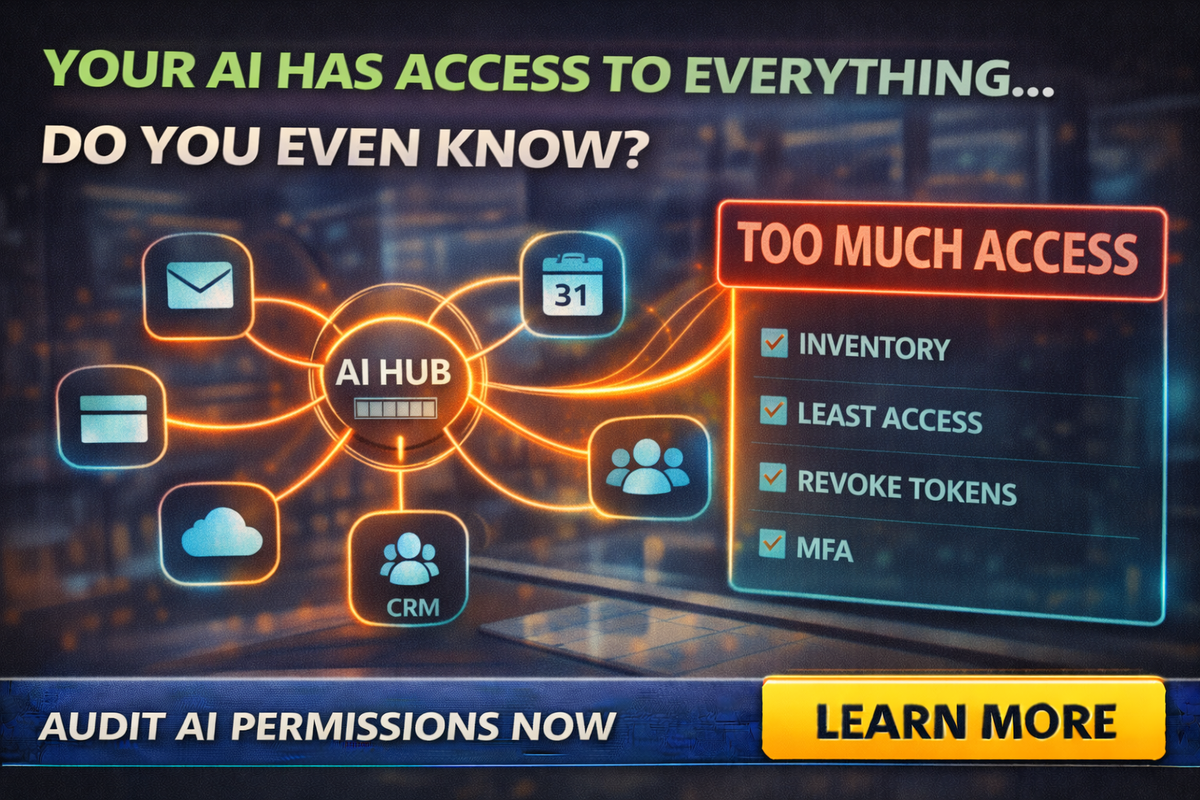
The AI Toolchain Audit
This is the simple checklist that tiny teams can actually do. You can run it in under an hour.
Inventory everything
Make a list of:
- AI apps used for work
- browser extensions related to AI
- email add-ons
- meeting transcription/summary tools
- automation tools that connect to AI
- CRM connectors
- anything that “summarizes,” “writes,” or “syncs”
If you can’t name it, you can’t secure it.
Find what each tool can access
For each tool, write:
- what it connects to (email, Drive, calendar, CRM)
- what permissions it has (read, write, send, edit)
- who authorized it
- which accounts use it (owner, staff, shared)
This is where most businesses get surprised.
Reduce to least access
This is the golden rule:
If it doesn’t need write access, don’t give it write access.
Examples:
- A summarizer may only need read access, not send access.
- A file tool may only need access to one folder, not the entire Drive.
- A scheduler may need calendar access, not your contacts list.
Revoke what you don’t use
If you don’t use it weekly, question why it still has access.
If you don’t recognize it, remove it immediately and investigate.
Lock down sign-ins
At minimum:
- MFA on every admin account
- no shared logins
- separate personal and business accounts
- remove ex-employees from all accounts and shared tools
Set an approval rule
You only need one rule:
No new AI tools or connectors without approval.
Even if you’re a two-person business, that rule prevents chaos.
Common “oops” situations and quick fixes
“We use AI extensions in Chrome”
Fix:
- remove anything that isn’t essential
- keep a short approved list
- review permissions quarterly
“We connected our inbox so AI can help”
Fix:
- confirm whether it can send mail or only draft
- limit to one mailbox if possible
- avoid connecting to the owner’s inbox if it contains banking, legal, or HR
“We connected Drive”
Fix:
- create an “AI Workspace” folder and only grant access there
- keep sensitive docs in separate restricted folders
“We connected the CRM”
Fix:
- ensure the AI tool can only access necessary fields
- do not allow full export access unless absolutely needed
- restrict who can authorize connectors
The “quarterly cleanup” habit
Most small businesses don’t need complex governance.
They need a recurring habit:
Once per quarter:
- review connected apps
- revoke unused access
- verify MFA is still enabled
- remove old extensions
- confirm staff accounts are current
That one habit prevents long-term permission sprawl.
Final Thought
AI is not just a tool anymore. It’s becoming a network of tools.
And networks need inventory and control.
If you want to keep the productivity benefits without turning your business into a permissions mess, run the AI Toolchain Audit:
- inventory
- least access
- revoke what you don’t use
- lock down accounts
- require approval for new connectors
If you want help doing this the clean way, Managed Nerds can help you inventory your AI stack, reduce access safely, and build a simple “approved tools” system that small teams can actually follow.